
Bookings · 3 min read
Connect your Google or Outlook calendar
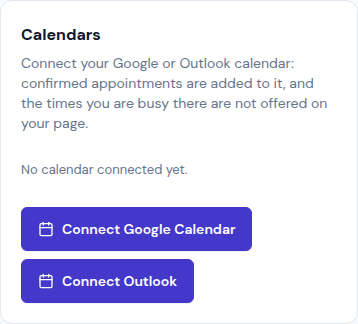
Connected, your calendar gets every confirmed appointment, and the times you are busy there are not offered on your page.
-
Open Appointments › Settings and go down to Calendars.
-
Tap Connect Google Calendar or Connect Outlook.
-
Sign in to your Google or Microsoft account and allow everything Llyner asks for: it needs every permission to read your busy times and add appointments.
-
Back in Llyner, the account shows Connected. Under Add confirmed appointments to, pick the calendar that gets them.
-
Llyner reads your calendar every 5 minutes; tap Read it now to read it at once. If it says Access lost, tap Connect again. Disconnect stops it; appointments already there stay.
Updated October 19, 2026, with the screens as they are now.