
Marketing · 6 min read
Import your contacts
Bring in the people who already agreed to hear from you (a sign-up sheet, your shop's list) from a CSV file. Every address is checked before anyone is imported.
-
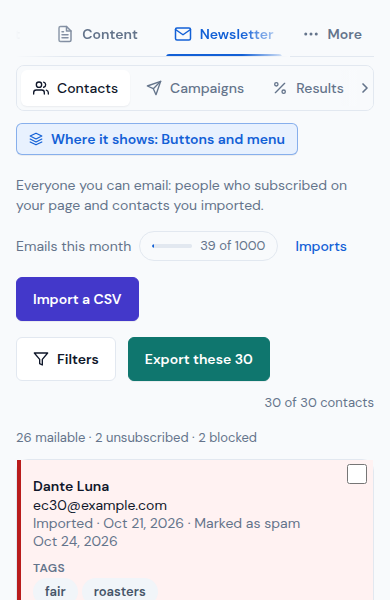
Open Newsletter › Contacts and tap Import a CSV. Imports lists the earlier ones, with their state.
-
The file: a CSV with a heading row, separated by commas or semicolons, up to 10 MB and 20,000 rows. Drop it in or tap Choose a CSV.
-
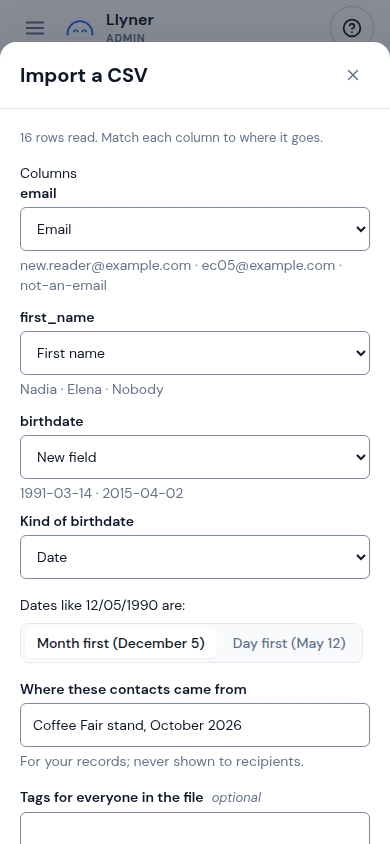
Match the columns: for each column, say where it goes: Email, Name (first and last), one of your fields, New field, Tag (each value a tag) or Don't import. A new field asks its kind (Text, Number, Date or Yes / no) in Kind of …; it is made when you import, not before. When the file has dates like 12/05/1990, choose under Dates like 12/05/1990 are: whether it's Month first or Day first.
-
Tick These people agreed to get emails from … (required). Where these contacts came from is optional: write it if you want it in your records ("For your records; never shown to recipients."). You can also add Tags for everyone in the file if you want (separated by commas). Update existing values of contacts already here overwrites the fields of contacts you already have; off, only their empty fields are filled.
-
Tap Check n addresses. The check runs in the background; you can close the window and come back from Imports › See progress.
-
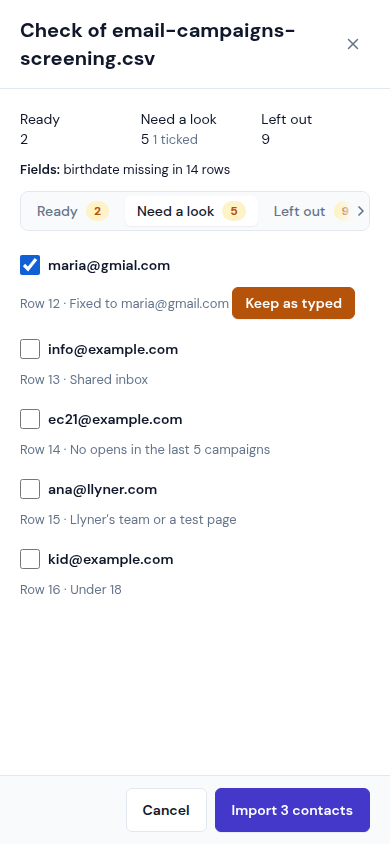
The report has three lists:
- Ready: they are imported.
- Need a look: probable typos (Use the fix or Keep as typed), shared inboxes like info@, people with no opens in the last 5 campaigns, staff or test addresses, people under 18. Each is imported only if you tick it.
- Left out: never imported, each with its reason (not an address, a throwaway inbox, twice or already a contact, unsubscribed, bounced, marked as spam, Blocked by you). Download the left-out list keeps them as a file.
-
Tap Import n contacts. It runs in the background; Imports shows "Importing n of m", then the date and how many. They are in Contacts with the file's tags and fields.
-
Tags and blocked addresses are in Newsletter › Settings: Tags renames, merges or deletes a tag; Blocked addresses › Block addresses takes one address per line, and a line starting with @ blocks a whole domain. Blocked addresses never get your emails and are left out of every import.
Updated October 30, 2026, with the screens as they are now.