
Selling and orders · 4 min read
Get paid by card or with a payment proof
Your customers pay you directly. Llyner never holds the money: you choose how, and record each payment.
-
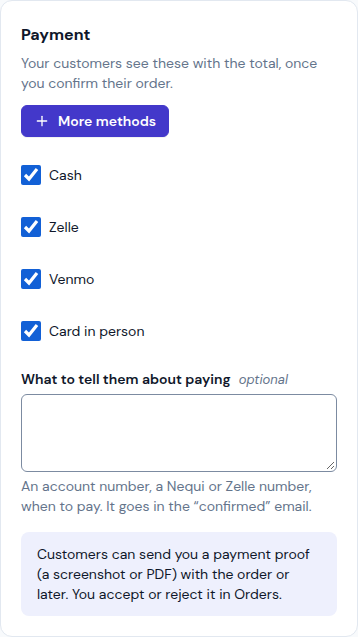
Open Sales › Settings. Under Payment, tick How you are paid (Cash, Bank transfer, Zelle… More methods shows the rest) and write What to tell them about paying: an account number, when to pay. Tap Save.
-
Customers see these with the total once you confirm their order. They can send you a payment proof (a screenshot or PDF) with the order or later.
-
A proof shows in Sales › Orders as Proof to check. Tap Check proof, look at it, then Accept proof (the payment is recorded and they get an email) or Reject proof with the reason.
-
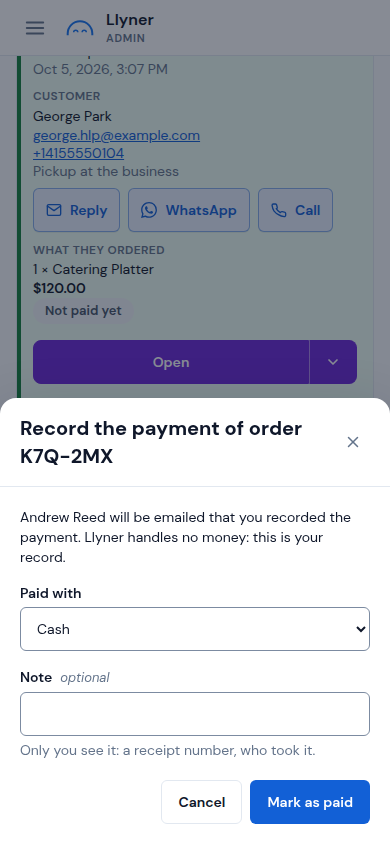
Paid another way? Tap ▾ beside the order, then Mark as paid, pick what it was Paid with and tap Mark as paid.
-
To take cards: when card payments are on for your page, Sales › Settings shows Card payments. Paste the keys of your own Stripe account, tap Connect, then Test connection. Card payments are marked paid by themselves.
Updated October 19, 2026, with the screens as they are now.