
Selling and orders · 3 min read
Move an order from received to completed
Each order goes forward one step at a time, and your customer is emailed at every step.
-
Open Sales › Orders. The boxes on top count what is Waiting for you and In progress; the chips below filter the list.
-
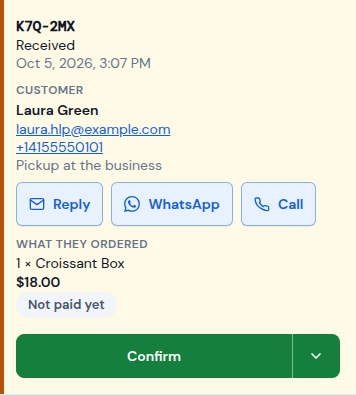
A new order says Received. Its big button is always the next step: here, Confirm.
-
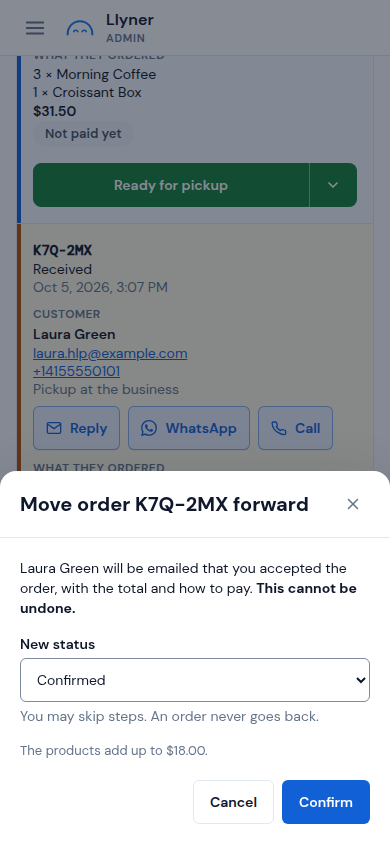
Tap Confirm, check the New status and tap Confirm again. You may skip steps, but an order never goes back.
-
Keep going with the same button: Start preparing, then Send or Ready for pickup, then Mark as delivered (or Mark as picked up).
-
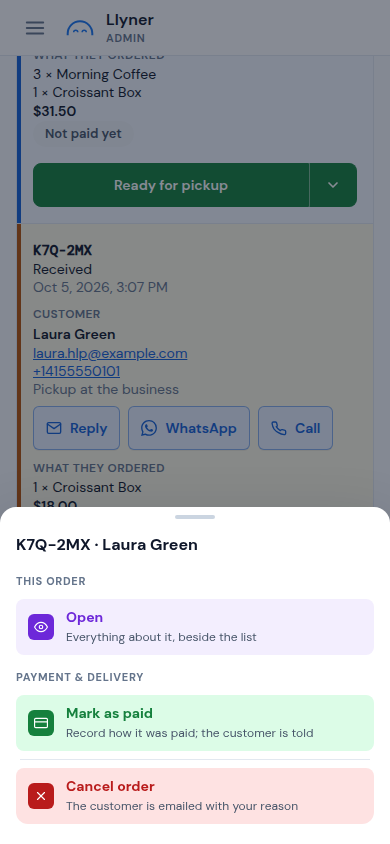
Tap ▾ beside the button for the rest: Open shows everything about the order, Mark as paid records the payment and Cancel order emails your customer your reason.
-
Once delivered, the customer confirms it arrived, or 15 days later, and the order is Completed.
Updated October 19, 2026, with the screens as they are now.