
Getting started · 8 min read
Set up your café page
A page in Food and drink (Alimentos y Bebidas) opens on Set up your page the first time you sign in with your emailed link. It takes you from your menu photo to a QR you can put on your tables, one step at a time.
-
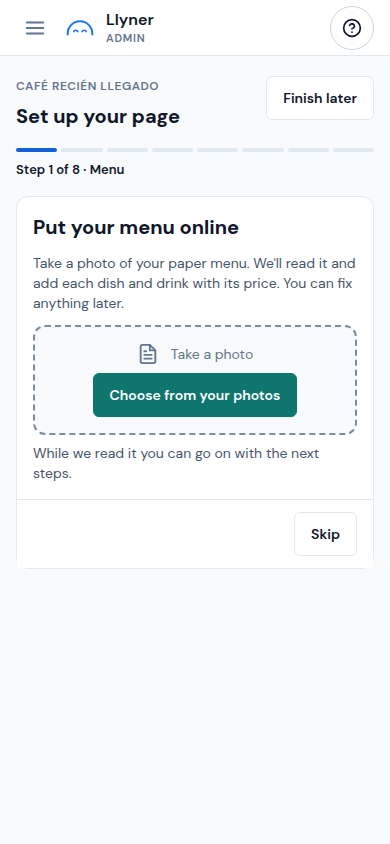
After you sign in, the setup opens on its own. A step has Skip (to leave it for later) and its main button, Continue, which saves it and goes to the next. Back goes to the step before, and Finish later (top right) closes the setup and takes you to Home. The steps you finished show a tick; the ones you skipped, a dashed circle. On a phone, a line at the top says Step 1 of 8.
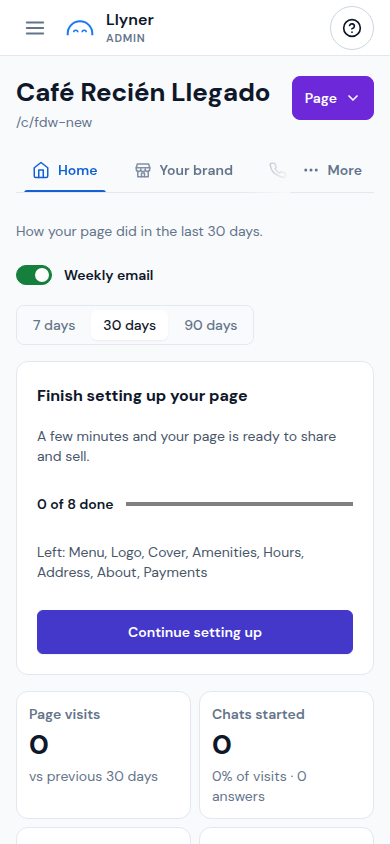
If you leave before the end, it opens again the next time you sign in. Meanwhile Home shows the card Finish setting up your page, with how many steps are done and which are left. Tap Continue setting up to come back.
-
Menu. Tap Take a photo (or Choose from your photos) of your paper menu. We read it and add each dish and drink as a product, with its price, and put your menu online. It takes a minute or two: go on with the next steps, and a message tells you when it's done. If your plan sells fewer products than your menu has, we add them all anyway: the first ones are sold in the chat and the rest are on your menu only (see "Put your menu on your page").
-
Logo and Cover. Upload your logo, then a cover photo, the first thing people see on your page. With no photo, tap No photo? Make one for me. Continue is on once one is saved.
-
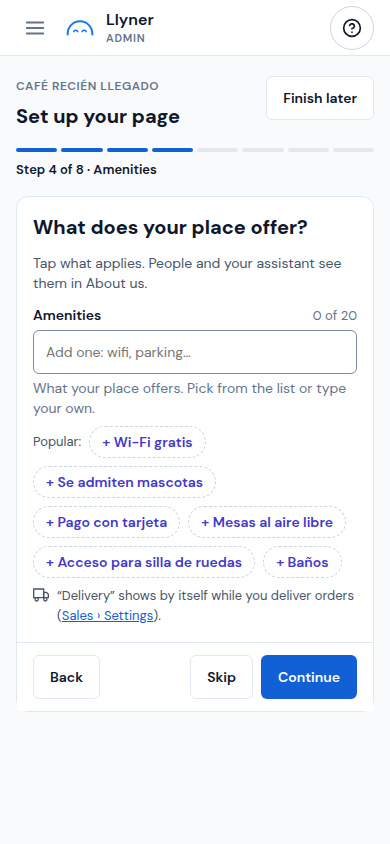
Amenities. Tap what your place offers (Wi-Fi, parking, pet friendly…), or type your own. People and your assistant see them under About us.
-
Hours. Set when you are open, like in Your brand › Location and hours.
-
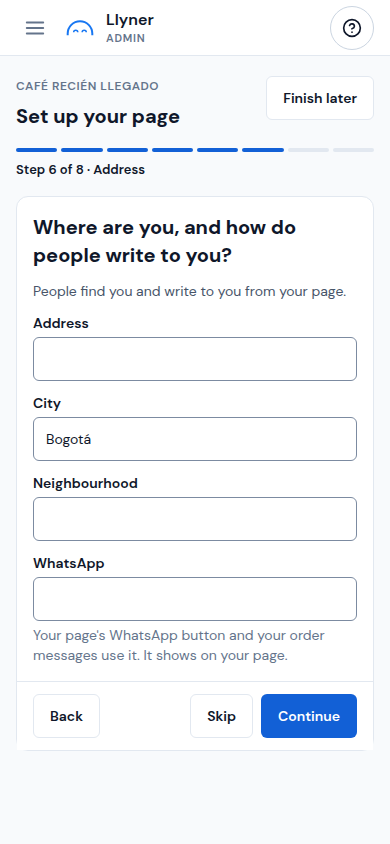
Address. Write your Address, City, Neighbourhood and WhatsApp. Your page's WhatsApp button and your order messages use that number, and it shows on your page.
-
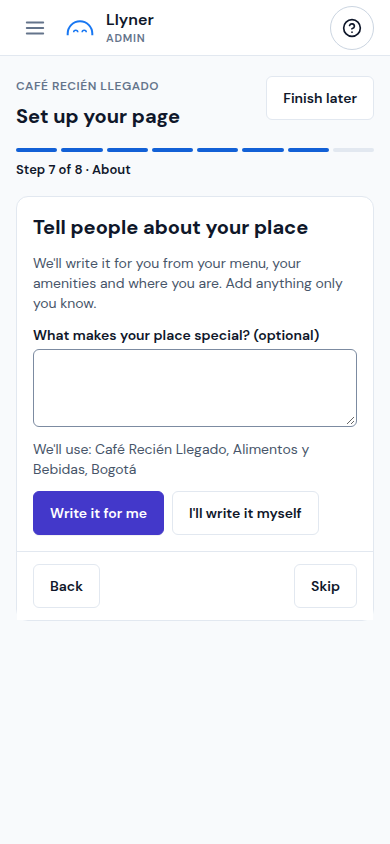
About. In What makes your place special? (optional) add anything only you know, then tap Write it for me: we write About us from your menu, your amenities and where you are. Change the text if you like (up to 500 characters) or tap Write another. Prefer your own words? Tap I'll write it myself. Continue needs a text.
-
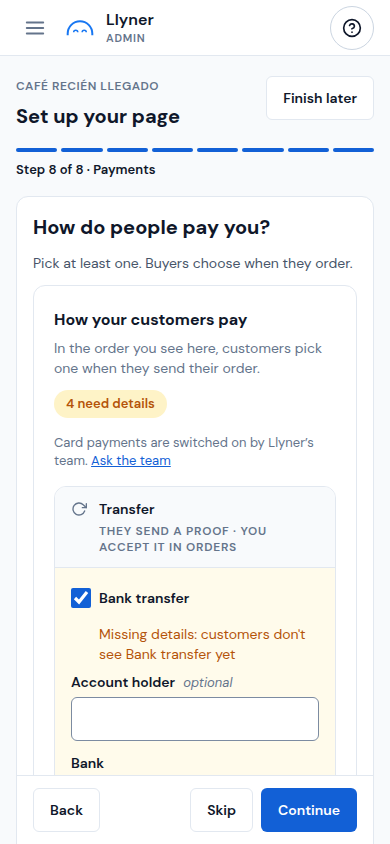
Payments. The card How your customers pay is the one in Sales › Settings: Transfer (with its details) and When they get it (Cash or Card in person). Pick at least one; buyers choose when they order. A transfer can't be saved without its details.
-
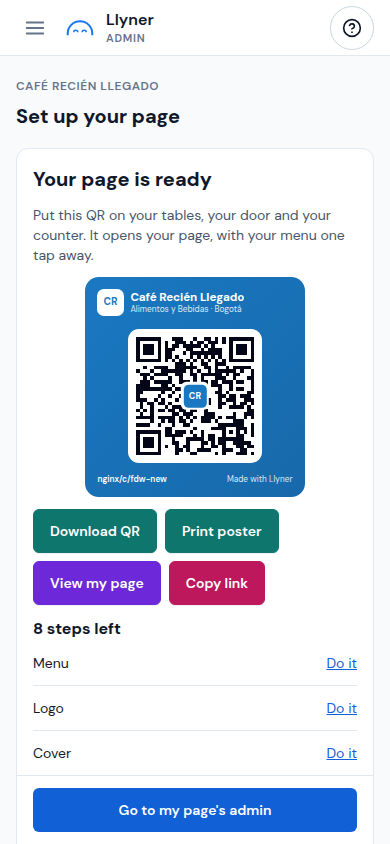
Your page is ready shows the QR of your page. Tap Download QR to save it, Print poster to print it, or Copy link to send it; View my page opens your page in a new tab. If you skipped steps, "n steps left" lists them, each with Do it. Tap Go to my page's admin to finish and go to Home.
Updated November 6, 2026, with the screens as they are now.