
Your page · 4 min read
Choose what the buttons and menu show
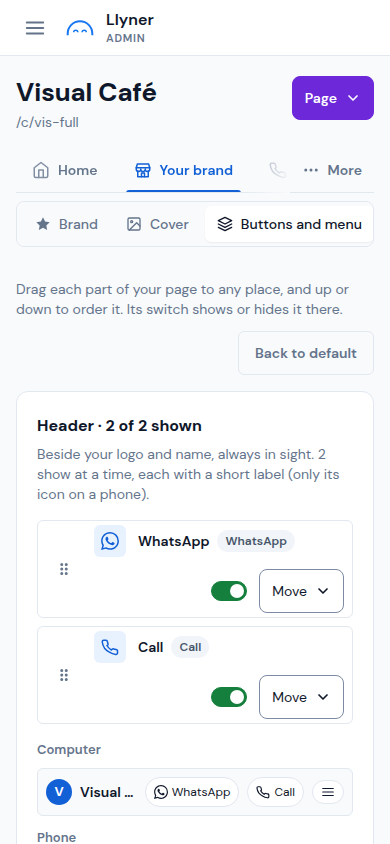
Your page has three places for its options: the Header (beside your logo, 2 at most), the Chat buttons (above the text box) and the ☰ Menu (at the header's right edge).
-
Open Your brand › Buttons and menu. Each part of your page is a row in one of the three places, in the order your customers see it.
-
Turn a row's switch off to hide it there, or on to show it. A hidden row keeps its place. A row that cannot show yet says why (for example Add a phone in Contact).
-
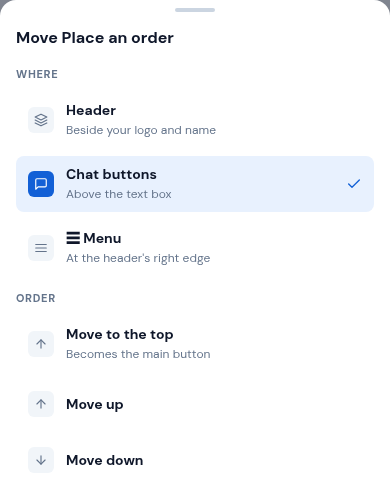
To move a row, tap its Move. Under Where, pick Header, Chat buttons or ☰ Menu; under Order, pick Move to the top, Move up or Move down. You can also drag a row by its handle.
-
The first chat button is the Main button, filled in your brand colour. The header shows 2 at a time: to add another, hide one first.
-
Tap Save. Back to default puts everything back the way Llyner arranges it.
Updated October 19, 2026, with the screens as they are now.